Streaming Windows Applications on AWS with Amazon AppStream 2.0
by Emmanuël Caputo, Cloud Developer
Picture this: employees and external partners need access to Windows business applications, but you can't manage a fleet of workstations, you can't install software on unmanaged devices, and you can't let corporate data sit on personal laptops.
That's exactly the challenge our client faced. We solved it by streaming the applications directly to the browser, from AWS, so nothing ever touches the end device.
Amazon AppStream 2.0 makes this possible by running Windows applications on AWS instances and streaming them in real time. No local installation, no data on the device, no open ports. But deploying AppStream in an enterprise setting isn't just about spinning up a fleet. It requires orchestrating a complete ecosystem: networking, Active Directory, profile storage, SSO authentication, and application image management.
In this article, we walk through how we put it all together.
The Architecture Overview
At its core, AppStream needs Windows instances to run applications — but those instances don't live in isolation. They need to know who the user is, where to store their data, and how to authenticate them.
That's why the infrastructure relies on four key building blocks:
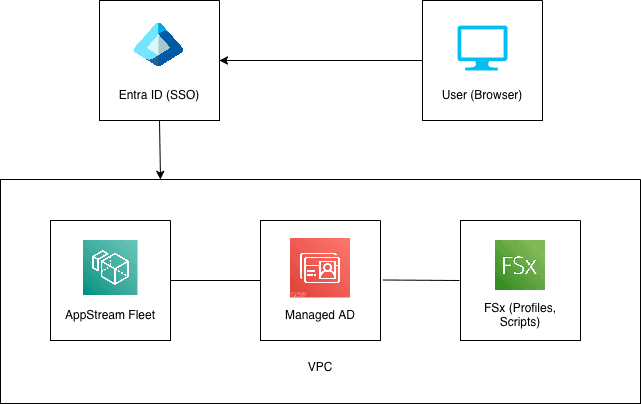
- Amazon AppStream 2.0 — a fleet of Windows instances that streams applications directly to the user's browser
- AWS Managed Microsoft AD — a fully managed Active Directory that handles user identities and Windows domain policies
- FSx for Windows File Server — network storage where user profiles and configuration scripts are kept, so each user gets a consistent experience across sessions
- Entra ID (Azure AD) — the client's existing identity provider, integrated via single sign-on so users log in with their usual credentials
All of this runs inside a dedicated network (VPC) on AWS. The core infrastructure is provisioned using AWS CDK in TypeScript. Let's dig into each layer.
Network and Security
Everything starts with the network. The VPC is the foundation that all other components sit on. We set it up with two Availability Zones for redundancy, and both public and private subnets. A single NAT Gateway provides outbound internet access for instances in private subnets, while an S3 Gateway Endpoint keeps S3 traffic off the public internet, reducing costs and improving security.
const vpc = new Vpc(this, "Vpc", {
    maxAzs: 2,
    natGateways: 1,
    subnetConfiguration: [
        {
            name: "Public",
            subnetType: SubnetType.PUBLIC,
        },
        {
            name: "Private",
            subnetType: SubnetType.PRIVATE_WITH_EGRESS,
        },
    ],
});

vpc.addGatewayEndpoint("S3Endpoint", {
    service: GatewayVpcEndpointAwsService.S3,
});
Security Groups are where things get interesting. Each component has its own set of rules. AppStream instances need HTTPS, HTTP and UDP 8433 (the streaming protocol), while FSx requires SMB (port 445) and WinRM (port 5985) for file sharing and remote administration. Both need access to Active Directory ports for domain join and authentication.
Rather than opening broad ranges, we defined granular egress rules per component, keeping the blast radius small if anything is ever compromised.
Identity and Storage
Managed Active Directory
In a Windows-based environment, Active Directory is the backbone of identity. It's what allows AppStream instances to join a domain, apply Group Policies, and recognize users. We use AWS Managed Microsoft AD, a fully managed service that removes the need to maintain domain controllers yourself.
const ad = new CfnMicrosoftAD(this, "MicrosoftAD", {
    name: "ad.example.com",
    shortName: "CORP",
    edition: "Standard",
    password: adAdminPassword.secretValue.unsafeUnwrap(),
    vpcSettings: {
        vpcId: props.vpc.vpcId,
        subnetIds: props.vpc.selectSubnets({
            subnetType: SubnetType.PRIVATE_WITH_EGRESS,
        }).subnetIds.slice(0, 2),
    },
});
Once the directory is provisioned, some configuration can't be automated. CloudFormation simply doesn't manage AD objects. To set up Organizational Units, service accounts and their permissions, Group Policies, FSx shares, and user accounts, we connected to a management EC2 instance via AWS Systems Manager (SSM) and ran the configuration manually in PowerShell. No SSH, no open ports. Just a secure session through the AWS console. Detailed runbooks with the exact commands to run become essential here to ensure reproducibility.
FSx for Windows and FSLogix
Here's a question you might not think about until it's too late: what happens to a user's desktop, settings, and files between sessions? Without persistent storage, every AppStream session starts from scratch. That's where FSx for Windows File Server and FSLogix come in.
FSx provides fully managed, AD-integrated SMB file shares. We set up five: three used at runtime by AppStream instances, and two used only during image building.
Runtime shares:
- Profiles — used by FSLogix (installed on the AppStream image) to store each user's profile in a dedicated container. When a user logs in, their profile is mounted automatically. When they log out, it's saved back. This means users get a consistent desktop experience across sessions.
- Sessions_Scripts — PowerShell scripts that run at logon. This is a powerful pattern: instead of rebuilding the application image for every small change, we update these scripts on the file share and they take effect at the next session.
- Mytools — runtime utilities and helper scripts, copied to each AppStream instance at logon.
Image building shares:
- Install — installation scripts and application installers used when building the AppStream image.
- Sources — static assets used during image building: Group Policy templates, icons, and on-demand application installers.
const fileSystem = new CfnFileSystem(this, "FsxFileSystem", {
    fileSystemType: "WINDOWS",
    subnetIds: props.vpc.selectSubnets({
        subnetType: SubnetType.PRIVATE_WITH_EGRESS,
    }).subnetIds.slice(0, 2),
    windowsConfiguration: {
        activeDirectoryId: props.directoryId,
        deploymentType: "MULTI_AZ_1",
        automaticBackupRetentionDays: 7,
    },
});
The Multi-AZ deployment ensures the file system stays available even if an entire Availability Zone goes down, which is critical when user profiles depend on it.
FSx handles the storage side. FSLogix itself is installed and configured during the image build process, which we cover in the next section.
The AppStream Layer
With the network, identity, and storage in place, we can now focus on what the user actually sees.
Fleet and Stack
An AppStream fleet is a pool of Windows instances ready to serve user sessions. Think of it as a group of virtual desktops waiting in the background. When a user connects, they're assigned an instance from the pool.
The fleet is provisioned through Infrastructure as Code and configured as always-on. Instances are running and ready before users connect, eliminating startup wait times. Each instance is domain-joined to the Managed AD, giving it access to Group Policies, user profiles on FSx, and all the network resources it needs.
const fleet = new CfnFleet(this, "AppStreamFleet", {
    instanceType: props.instanceType,
    fleetType: "ALWAYS_ON",
    computeCapacity: {
        desiredInstances: 3,
    },
    domainJoinInfo: {
        directoryName: props.directoryName,
        organizationalUnitDistinguishedName: props.ouPath,
    },
    vpcConfig: {
        subnetIds: props.vpc.selectSubnets({
            subnetType: SubnetType.PRIVATE_WITH_EGRESS,
        }).subnetIds,
        securityGroupIds: [props.appStreamSecurityGroup.securityGroupId],
    },
});
The stack defines the user experience: clipboard access (both directions), file upload and download, local printer redirection, and OneDrive integration. Together, these make the streamed session feel almost indistinguishable from a local desktop.
const appStreamStack = new CfnStack(this, "AppStreamStack", {
    storageConnectors: [{
        connectorType: "ONE_DRIVE",
        domains: [props.oneDriveDomain],
    }],
    // Clipboard, file transfer, local printing — all enabled
    userSettings: [
        { action: "CLIPBOARD_COPY_FROM_LOCAL_DEVICE", permission: "ENABLED" },
        { action: "FILE_UPLOAD", permission: "ENABLED" },
        // ...
    ],
});
The Image Builder
The application image defines which applications are available and how the Windows environment is configured. Unlike the fleet, the image builder is created manually from the Amazon WorkSpaces Applications console.
When launching an image builder, a few configuration choices matter:
- Base image — pick a Windows Server image provided by AWS as your starting point
- Instance type — choose one that matches your fleet
- VPC, Subnet and Security Groups — place it in a private subnet with access to your AD and FSx shares
- Default Internet Access — disable it if you're using a NAT Gateway instead
- Directory Name and OU — connect it to your Managed AD and specify the Organizational Unit for image builder machines
Once running, you connect via a streaming session in your browser. The connection is a two-step process: first as the local Administrator to grant AD admin rights on the machine, then reconnect as the Directory User to get Kerberos access to the FSx shares.
From there, the setup is largely script-driven. A first script handles system configuration: timezone, registry keys, Group Policy templates, a set of base packages via Chocolatey, and Windows Updates. It also pulls session scripts, tools and application launchers directly from the FSx shares.
A second script reads a JSON config file to install business applications from FSx, then registers each one in the AppStream catalog.
Finally, the Image Assistant optimizes the image for streaming performance and publishes it for use by the fleet.
Pro tip: Keep your application list in a JSON config on FSx. Adding or updating an app means updating the config and rebuilding, without redoing the whole setup from scratch.
Here's what a published image looks like, with the registered applications visible in the catalog:
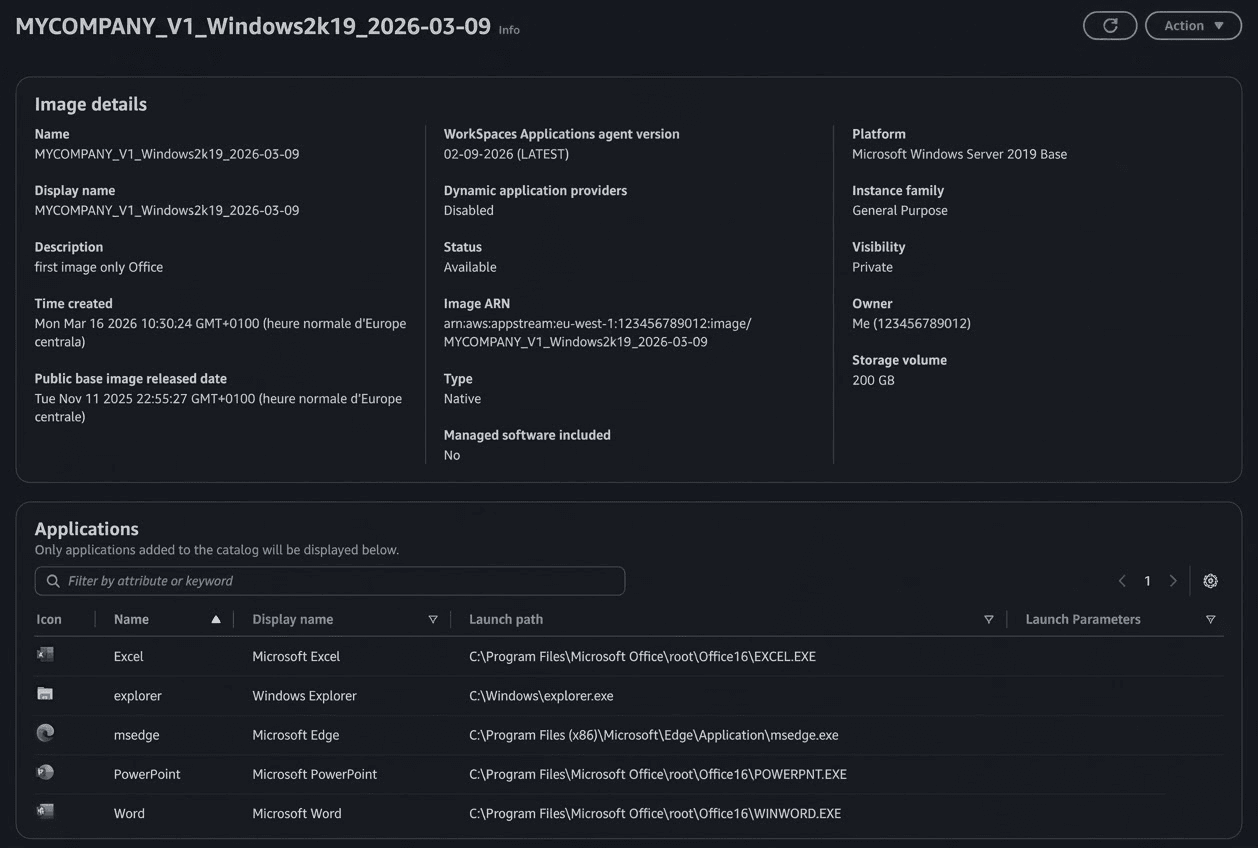
One design decision worth highlighting: we keep session scripts on FSx rather than baked into the image. This means we can update logon behavior (mount new network drives, apply settings, run diagnostics) without going through the full image rebuild process.
Authentication: SAML and Entra ID
The last piece of the puzzle is authentication. Our client's employees already use Microsoft 365 daily. Rather than asking them to manage yet another set of credentials, we integrated AppStream with their existing Entra ID (Azure AD) tenant through SAML federation.
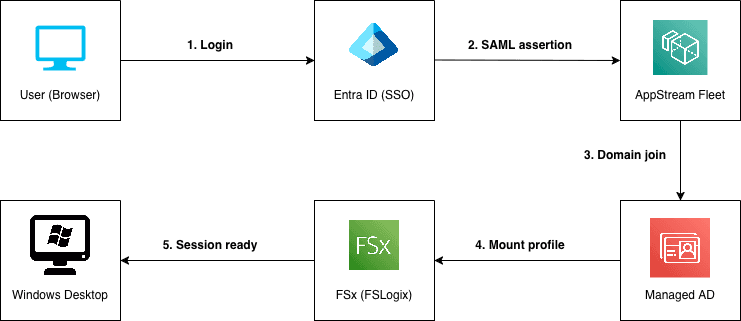
- The user navigates to the dedicated AppStream SAML URL or launches the application directly from the Entra ID portal
- They're redirected to Entra ID and log in with their usual Microsoft credentials
- Entra ID issues a SAML assertion. AppStream assigns the user to an already domain-joined instance in the fleet
- FSLogix mounts the user's profile from FSx
- The user lands on their Windows desktop, ready to work
For this to work, each user must exist in both Entra ID and the Managed AD. AD accounts are provisioned via a PowerShell script that reads from an Entra ID group and creates the corresponding accounts in Active Directory, with no sync agent required.
From the user's perspective, the experience is seamless: one login, and they're in.
What We Learned
Not everything can be Infrastructure as Code, and that's okay. AD objects, Group Policies, FSx permissions: some things have to be configured manually. What matters is documenting every step in detailed runbooks so the process stays reproducible.
FSLogix is a game changer. Without persistent profiles, every session starts from scratch. Combined with FSx, users get a seamless experience across sessions without any extra effort.
Session scripts beat image rebuilds. Loading scripts from FSx at logon lets you iterate quickly, with no need to rebuild the entire image for every small change.
CDK brings consistency. Having the core infrastructure in TypeScript gives us type safety and a single deployment pipeline.
At Necko Technologies, we design and deploy cloud infrastructure tailored to what organizations actually need. AppStream is one piece of a larger puzzle: identity, networking, storage, security, and automation all have to work together. If you're facing a similar challenge, whether it's application delivery, cloud migration, or something else entirely, feel free to reach out. We'd love to help.